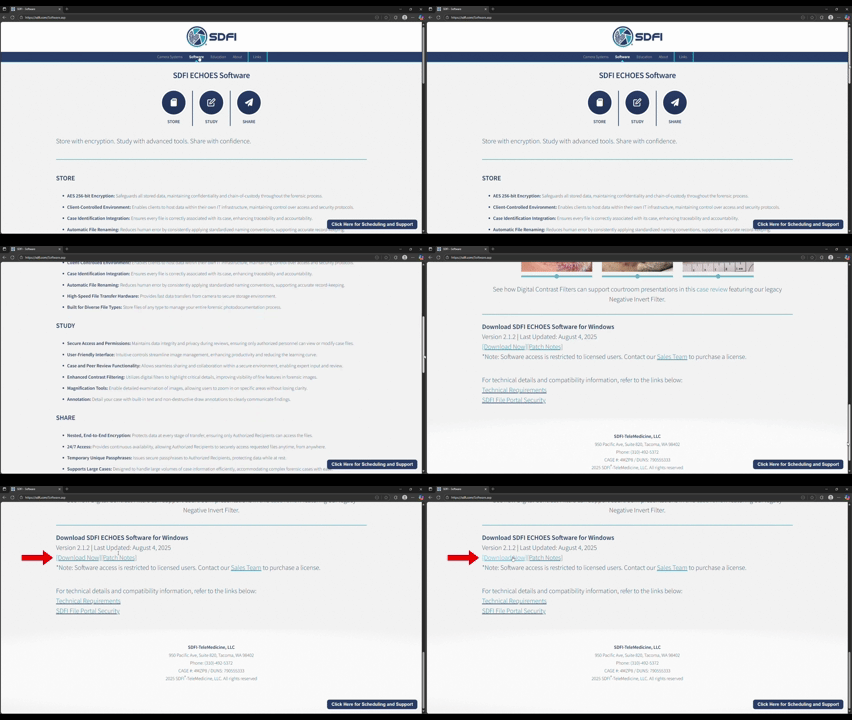
- 1. Navigate to SDFI's Software page.
-
2. Scroll down to the bottom of the page and click the
"Download Now" button.
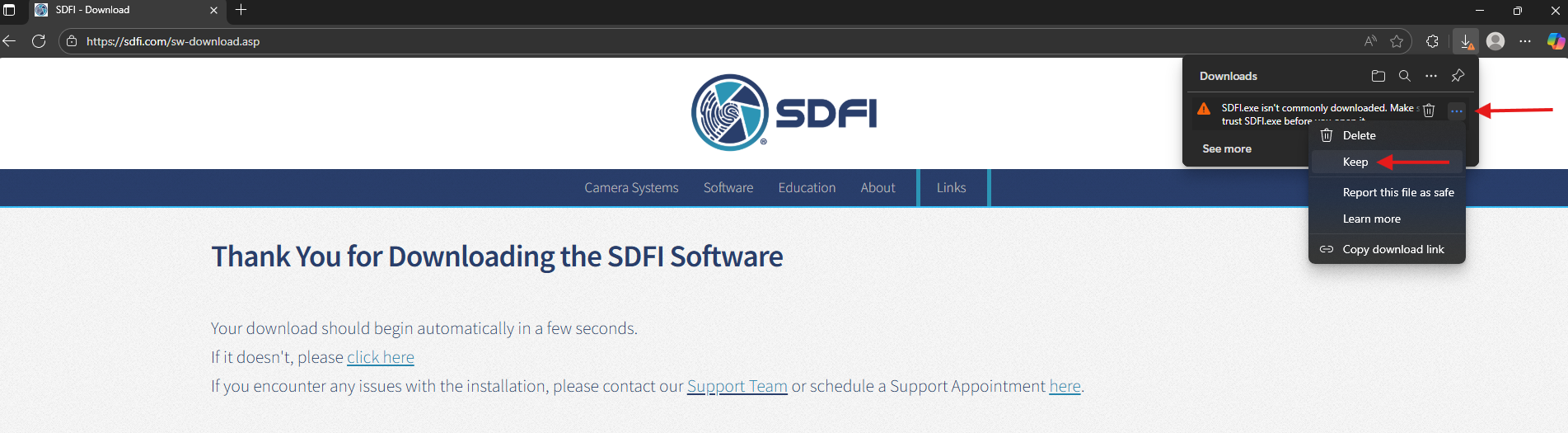
- 3. You'll be taken to a download confirmation page. The download should start automatically. If it doesn't, click the link to manually start the download.
-
4. You may see a browser warning. Hover over the file, click
the three dots, and select "Keep".
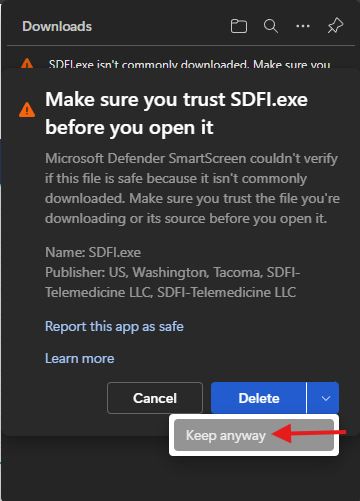
If prompted, select "Keep anyway" to complete the download. Note, you may have to select the dropdown next to "Delete" to see this.
-
5. Open the File Explorer from the task bar at the bottom of
your screen.

-
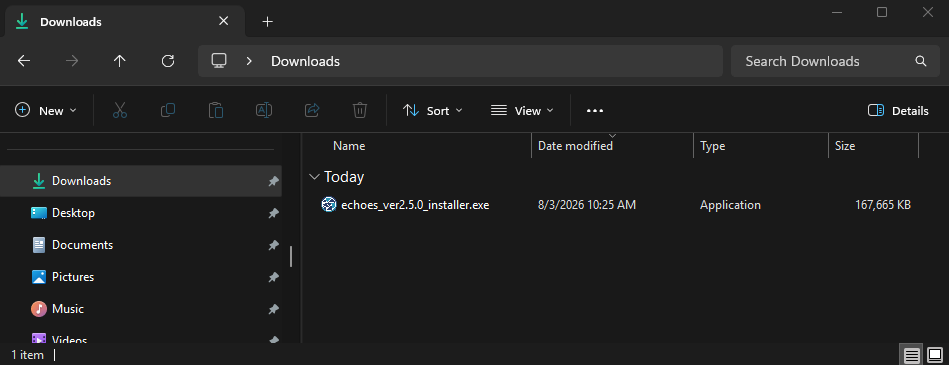
6. Navigate to the "Downloads" folder where you will find the
SDFI ECHOES installer application. To do this, select "Downloads" in the left
navigation panel, or type "Downloads" into the navigation bar
at the top of the screen and hit "Enter" on your keyboard.
-
7. Double-click on the "ECHOES_verX.X.X_installer.exe" file to launch the installer.
-
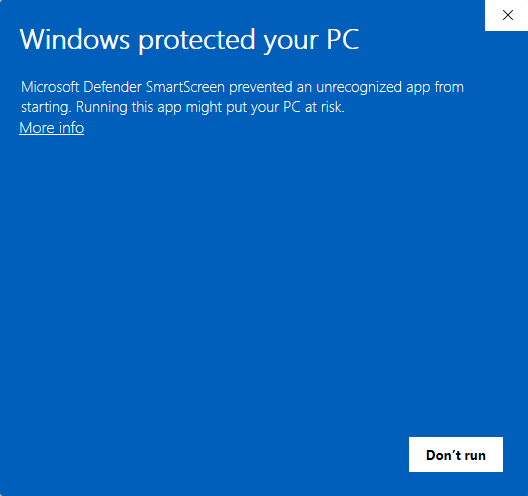
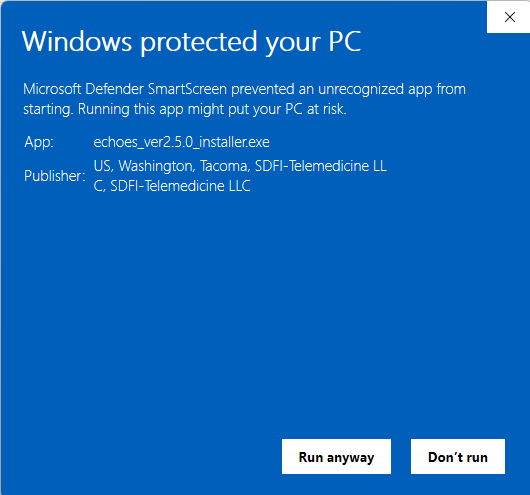
8. You may receive the messages below from Windows. If so, select "More info", then "Run anyway".
-
9. Select "Install" to begin the installation process.
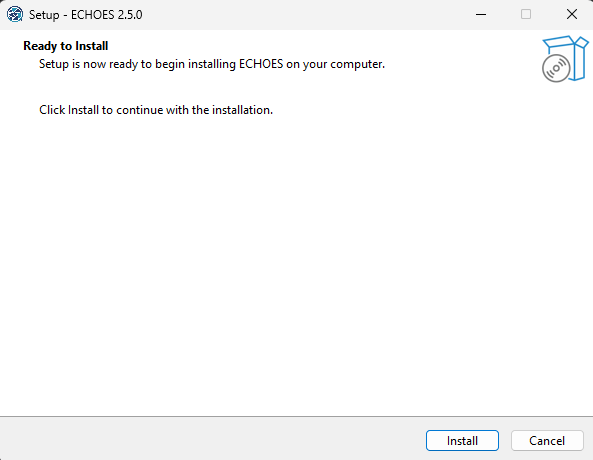
Note that this will create/replace desktop shortcut for you automatically.
-
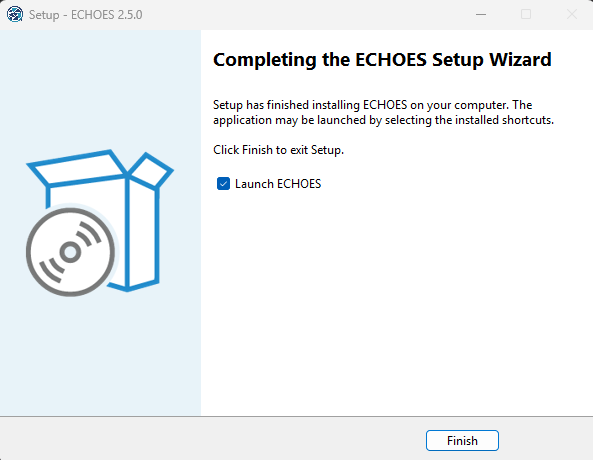
10. If you would like to launch ECHOES immediately, check the box. Then select "Finish".
- 11. Congratulations! The software has successfully been installed.

ECHOES Software Installation Guide
SDFI-TeleMedicine, LLC
950 Pacific Ave, Suite 820, Tacoma, WA 98402
Phone: (310)-492-5372
CAGE #: 4MZP8 / DUNS: 790555333
SDFI®-TeleMedicine, LLC. All rights reserved
950 Pacific Ave, Suite 820, Tacoma, WA 98402
Phone: (310)-492-5372
CAGE #: 4MZP8 / DUNS: 790555333